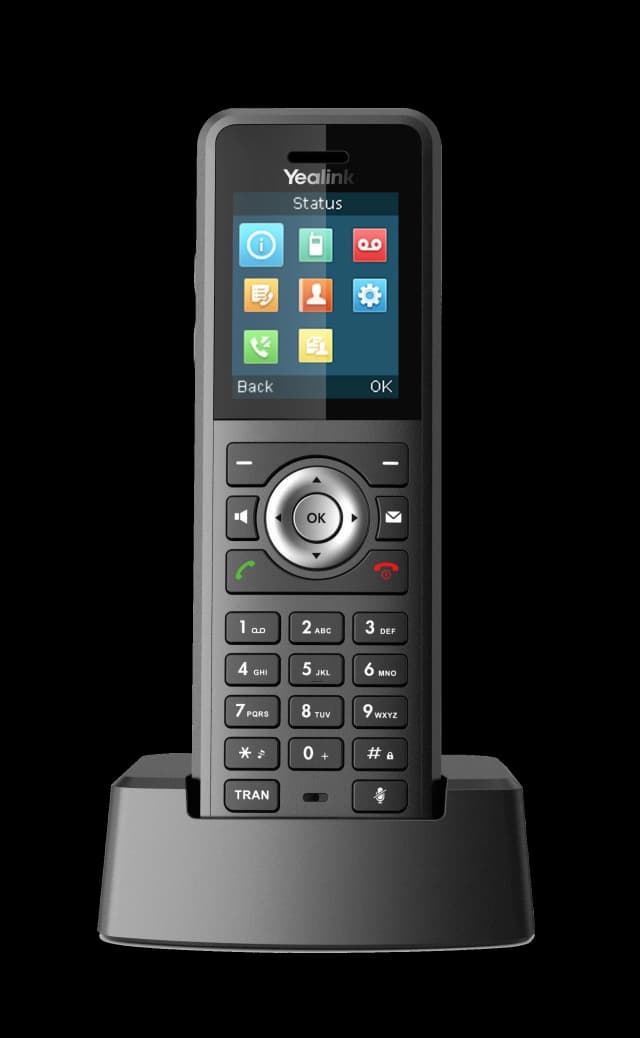
Yealink W59R
Setup Guide & User Manual
Download PDF GuideStep by Step
Quick Start
Get your Yealink W59R up and running in minutes.
About the W59R
- 1The W59R is a rugged additional handset — it does NOT include a base station.
- 2You need an existing W70B base station (included with W73P or W79P bundles).
- 3Each base supports up to 10 handsets.
Pair to Your Base Station
- 1Charge the handset fully using the included charging cradle.
- 2Press and hold the pairing button on your W70B base for 5 seconds.
- 3On the W59R: Settings > Registration > Register Handset.
- 4Your extension appears on screen once provisioned.
Features
Key Features
IP67 Rugged Rating
- Waterproof and dustproof — designed for harsh environments.
- Shock-resistant housing for warehouses, kitchens, and outdoor use.
Built-in Bluetooth
- Pair wireless headsets via Bluetooth for hands-free use.
- Go to Settings > Bluetooth > turn on > scan for devices.
How To
Common Tasks
Step-by-step instructions for the most common phone operations.
Set Up Voicemail
- 1Press and hold the 1 key (or the voicemail key if available).
- 2Follow the voice prompts to set your PIN and record your greeting.
- 3Voicemail-to-email is configured by your admin — contact us to enable it.
Transfer a Call
- 1During a call, press the Options key and select Transfer.
- 2Dial the extension or number you want to transfer to.
- 3Press Transfer again to complete (blind) or wait for the person to answer first (attended).
Set Up Call Forwarding
- 1Press the OK/Menu key on the handset.
- 2Navigate to Features > Call Forward.
- 3Select Always, Busy, or No Answer forwarding.
- 4Enter the destination number and save.
- 5You can also manage forwarding rules at talk.simplefiber.com.
Use Do Not Disturb (DND)
- 1Press OK/Menu > Features > DND and toggle it on.
- 2All incoming calls will go directly to voicemail.
- 3Toggle it off from the same menu when you're ready to take calls again.
Make a Conference Call
- 1While on a call, press the Options key and select Conference.
- 2Dial the second participant's number.
- 3Once they answer, press Conference to merge the calls.
Park and Retrieve a Call
- 1To park: Press Transfer, dial *70, then press Transfer. Note the parking slot number.
- 2To retrieve: Dial *71 followed by the slot number from any phone.
Troubleshooting
Common Issues & Fixes
Try these solutions before calling support.
No dial tone / phone won't register
Check that the Ethernet cable is firmly connected to the LAN port on the phone and the wall jack or switch. Verify the phone has power (screen should be lit). Try rebooting the phone by unplugging the Ethernet cable for 10 seconds and reconnecting. If the phone still shows 'No Service' or fails to register, contact Simple Fiber support — we may need to re-provision your phone.
Poor call quality / choppy audio
First, run a speed test at fast.com on a computer connected to the same network. If speeds are low, the issue may be your internet connection. Make sure the phone is connected via Ethernet (not WiFi) for best quality. Check that no one is running large downloads or uploads during calls. If the issue persists, contact us — we can prioritize voice traffic on your connection.
Can't hear the other party / one-way audio
Reboot the phone by unplugging the Ethernet cable for 10 seconds. Check that you're not on mute (mute icon on screen). If using a headset, make sure it's properly connected and the audio path is set to headset. If the problem continues, contact support — it may be a network or firewall issue.
Phone keeps rebooting or restarting
Check your Ethernet cable — a loose or damaged cable can cause power cycling on PoE phones. If using a power adapter, make sure it's the original Yealink adapter (third-party adapters can cause issues). If connected through a PoE switch, verify the switch provides enough power. Contact support if reboots continue.
Voicemail not working
Try dialing *97 directly to access voicemail. Make sure your voicemail PIN is set up (default is usually your extension number). If calls aren't going to voicemail, check your call forwarding and answering rules at talk.simplefiber.com. Contact support if you need your voicemail box reset.
Handset won't pair with base
The W59R requires a W70B base station (not included). Press the base pairing button for 5 seconds, then register from the handset.
Still Need Help?
Our support team is here for you. We'll get your phone working right.